You have a Microsoft SQL Server instance that hosts a database named DB1 that contains 800 gigabyte (GB) of data. The database is used 24 hours each day. You implement indexes and set the value of the Auto Update Statistics option set to True.
Users report that queries take a long time to complete.
You need to identify statistics that have not been updated for a week for tables where more than 1,000 rows changed.
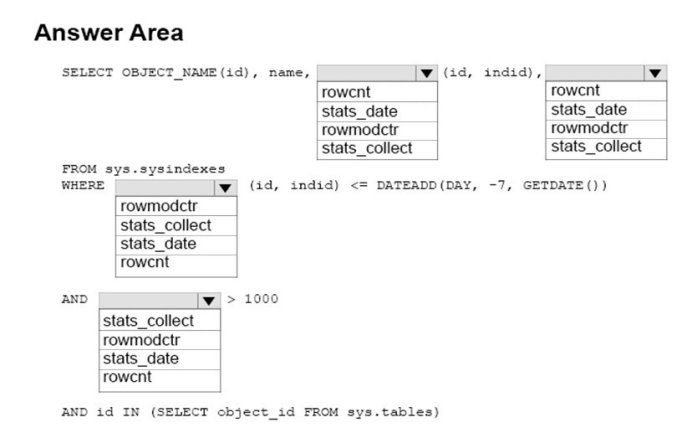
How should you complete the Transact-SQL statement? To answer, configure the appropriate Transact-SQL segments in the answer area.
Hot Area:
Answer is in the explanation below.
Reference / correct answer:
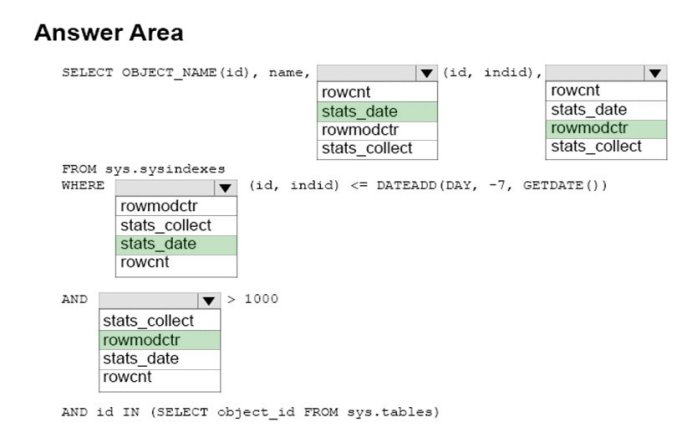
Box 1: stats_date See example below.
Box 2: rowmodctr See examplebelow.
Box 3: stats_date
You need to identify statistics that have not been updated for a week.
Box 4: rowmodctr
You need to identify that more than 1,000 rows changed.
Rowmodctr counts the total number of inserted, deleted, or updated rows since the last time statistics were updated for the table.
Example: We will query every statistics object which was not updated in the last day and has rows modified since the last update. We will use the rowmodctr field of sys.sysindexes because it shows how many rows were inserted, updated or deleted since the last update occurred. Please note that it is not always 100% accurate in SQL Server 2005 and later, but it can be used to check if any rows were modified.
You maintain Microsoft SQL Server instances named SVR1 and SVR2 that are hosted on two different servers. You configure log shipping between the two instances as follows:
DB1 on SVR1 is configured as the primary database.
DB1 on SVR2 is configured as the secondary database for DB1 on SVR1. No monitoring server is configured.
You need to monitor error log messages about the copy job.
What are two possible ways to achieve this goal? Each correct answer presents a complete solution.
NOTE: Each correct selection is worth one point.
Select all that apply, then click Submit answer.
○
On SVR1, run the following Transact-SQL statement: SELECT * FROM msdb.dbo.log_shipping_monitor_error_detail.
○
Use the Job Activity Monitor in SQL Server Management Studio by connecting to SVR1
○
View the Log Shipping Report in SQL Server Management Studio by connecting SVR1.
○
Use the Job Activity Monitor in SQL Server Management Studio by connecting to SVR2.
○
On SVR2 run the following Transact-SQL statement: SELECT * FROM msdb.dbo.log_shipping_monitor_error_detail.
Reference / correct answer:
View the Log Shipping Report in SQL Server Management Studio by connecting SVR1.
On SVR2 run the following Transact-SQL statement: SELECT * FROM msdb.dbo.log_shipping_monitor_error_detail.
C: The Log Shipping Report displays the status of any log shipping activity whose status is available from the server instance to which you are connected.
E: The history and status of the backup operation are stored at the primary server, and the history and status of the copy and restore operations are stored at the secondary server.
The log_shipping_monitor_error_detail table stores error details for log shipping jobs. You can query this table see the errors for an agent session. Optionally, you can sort the errors by the date and time at which each was logged. Each error is logged as a sequence of exceptions, and multiple errors (sequences) can per agent session.
You manage database servers in a high security environment. Your company has the following auditing requirements:
SQL Server auditing must be enabled on all server instances.
Auditing results must be logged in the Windows Security even log.
A routine review shows that a SQL Server is writing auditing entries to Windows Application event log. You change the SQL Server audit target to Windows Security event long. SQL Server auditing stops working on the server.
You need to ensure that the server meets the auditing requirements.
Which two actions should you perform? Each correct answer presents part of the solution.
Select all that apply, then click Submit answer.
○
Grant the manage auditing and security log permission to the SQL Server service account.
○
Grant the generate security audits permission on the SQL Server service account.
○
Update Windows security policy to audit object access.
○
Restart the SQL Server Agent service.
Reference / correct answer:
Grant the generate security audits permission on the SQL Server service account.
Update Windows security policy to audit object access.
There are two key requirements for writing SQL Server server audits to the Windows Security log:
The audit object access setting must be configured to capture the events.
The account that the SQL Server service is running under must have the generate security audits permission to write to the Windows Security log.
 DB1 on SVR1 is configured as the primary database.