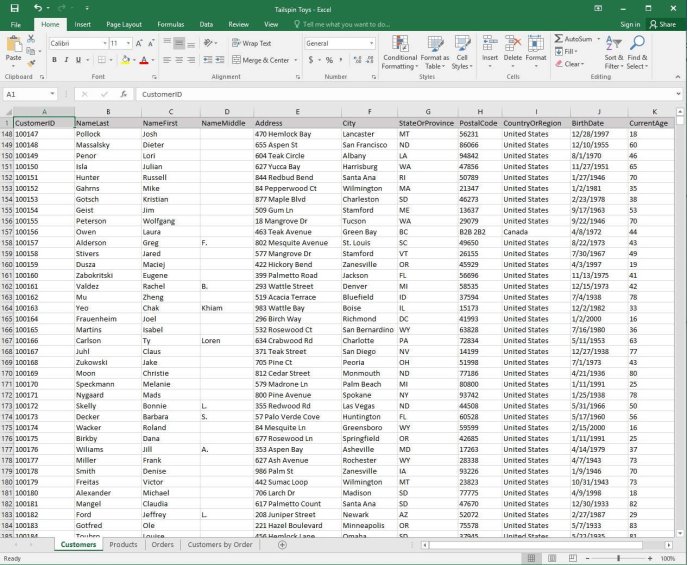
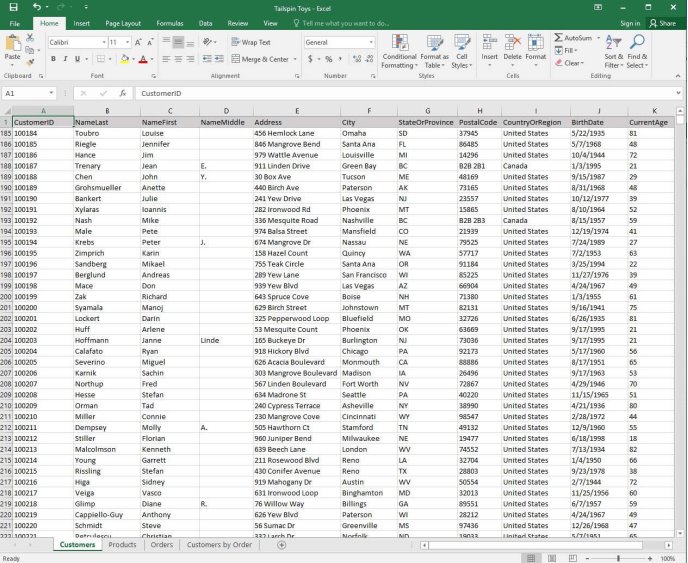
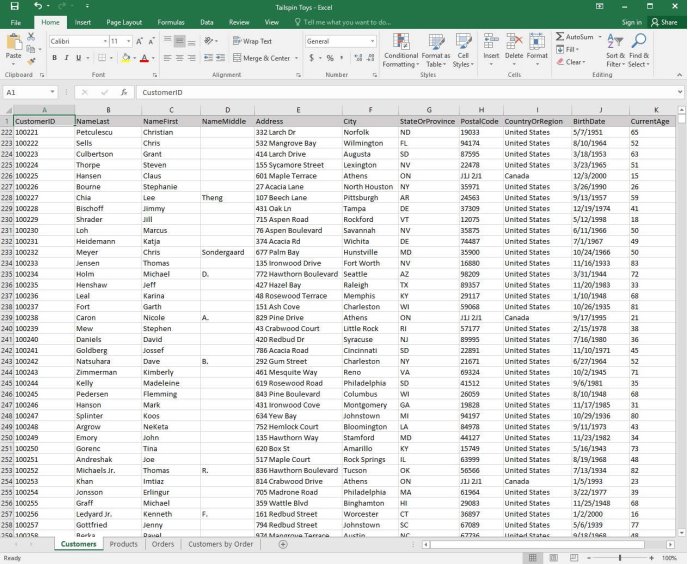
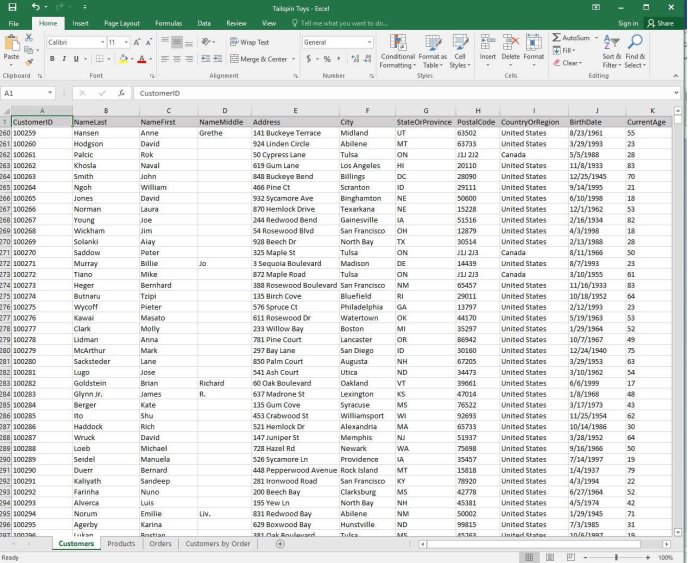
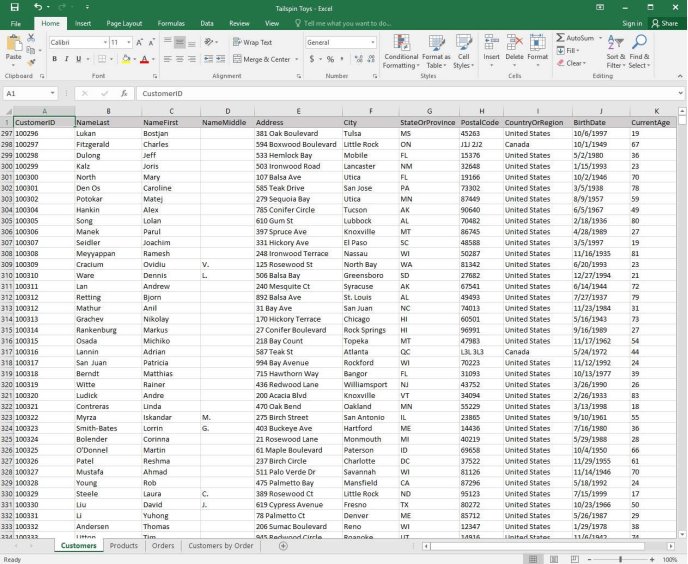
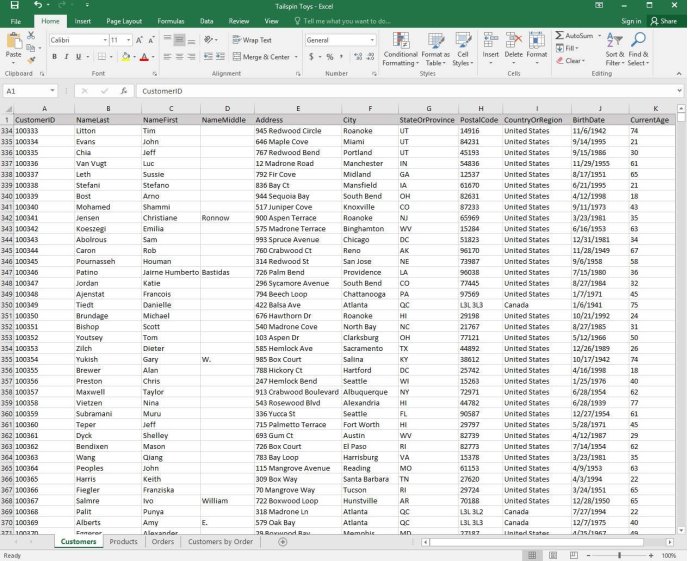
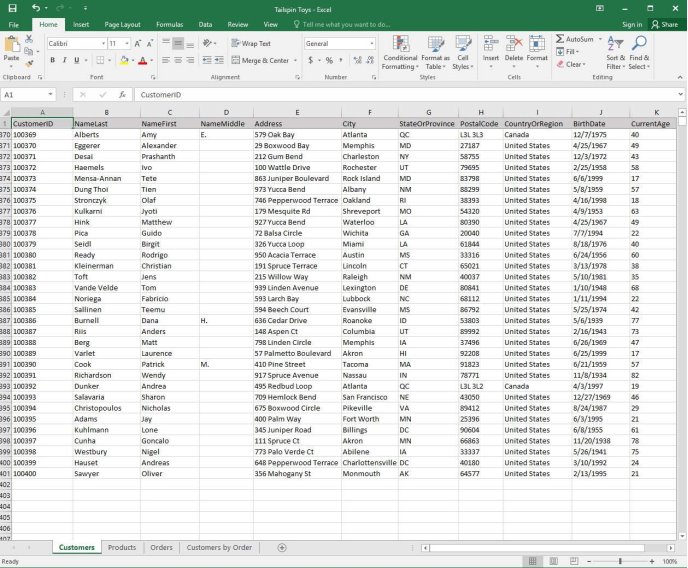
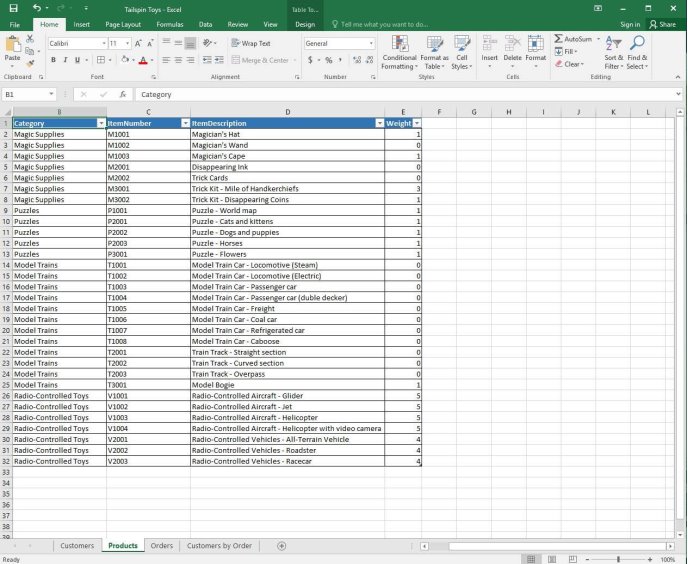
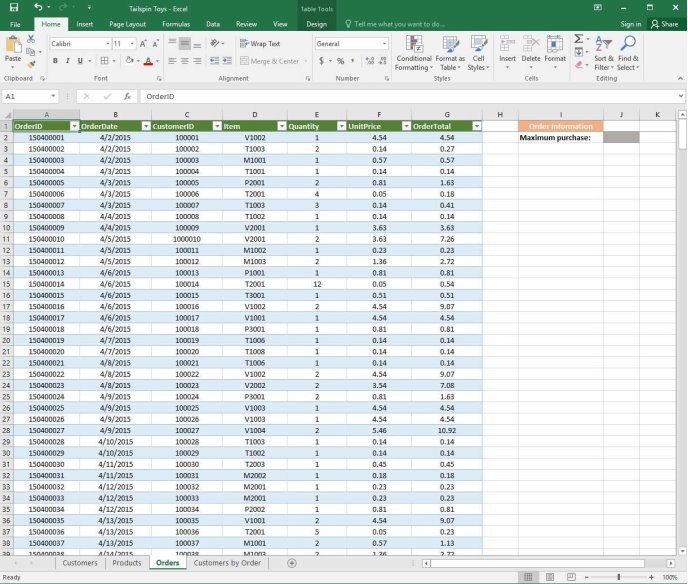
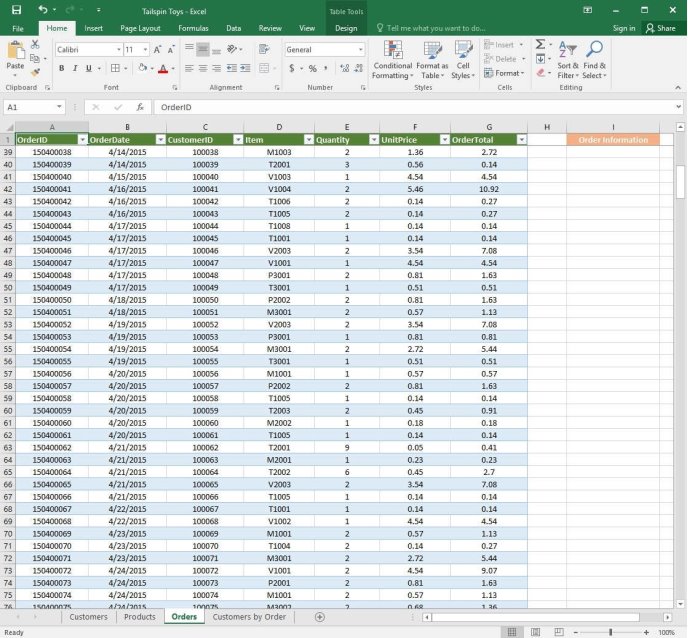
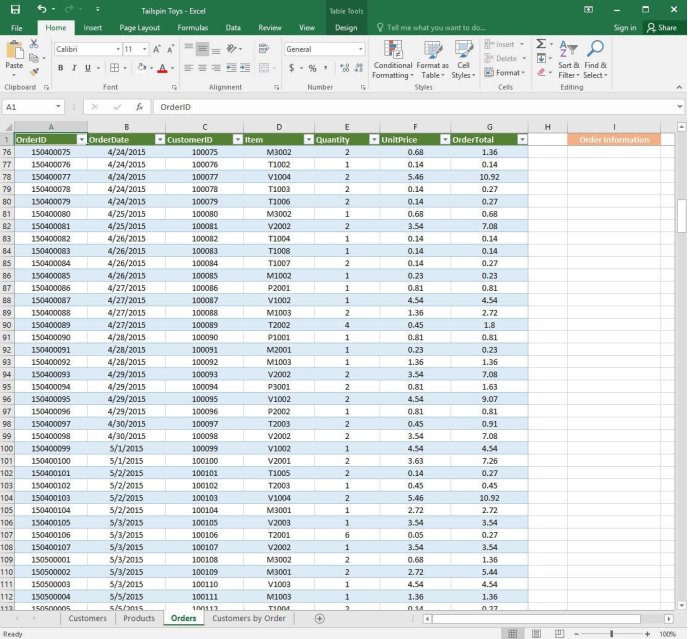
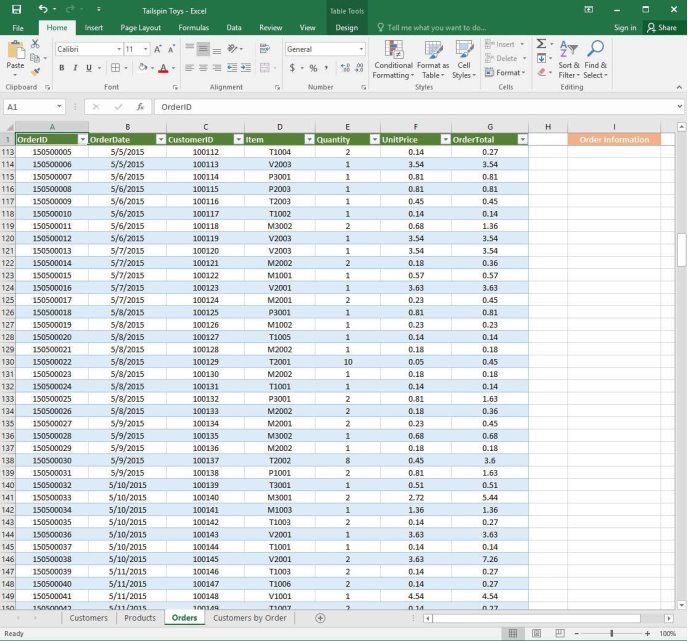
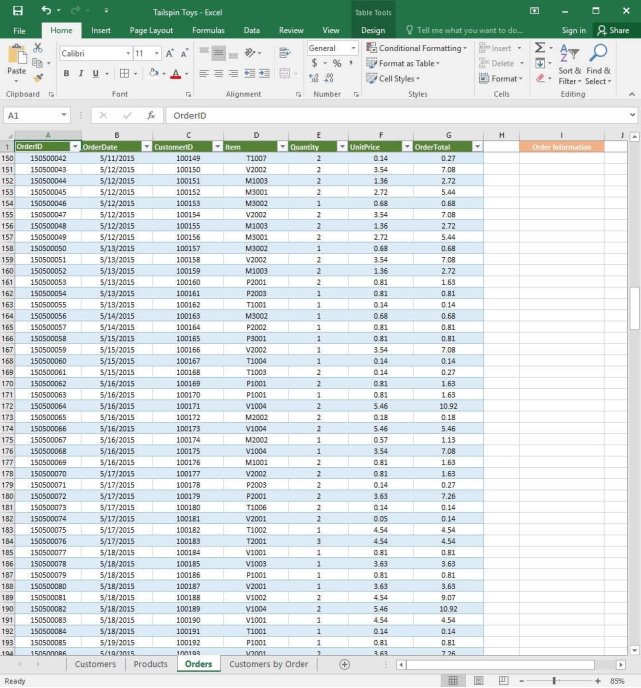
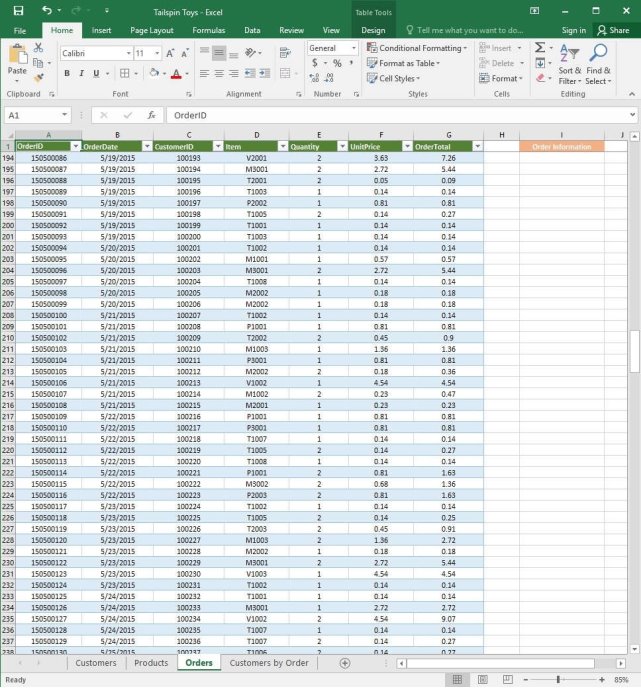
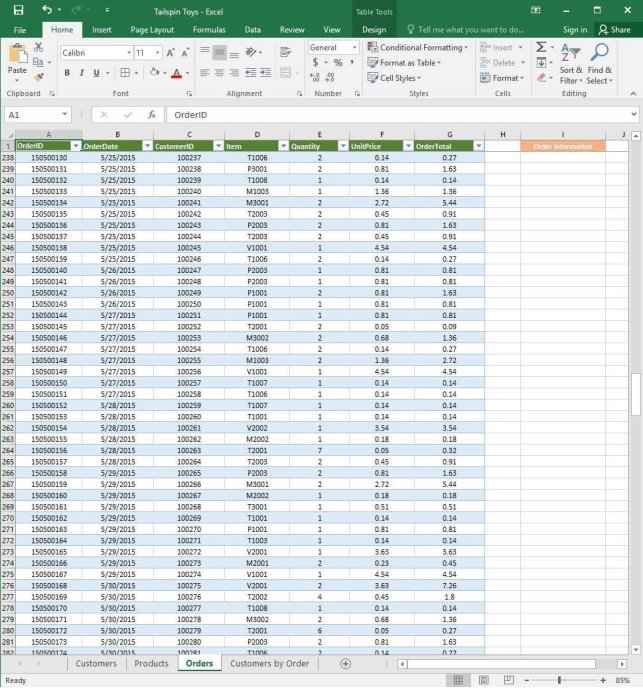
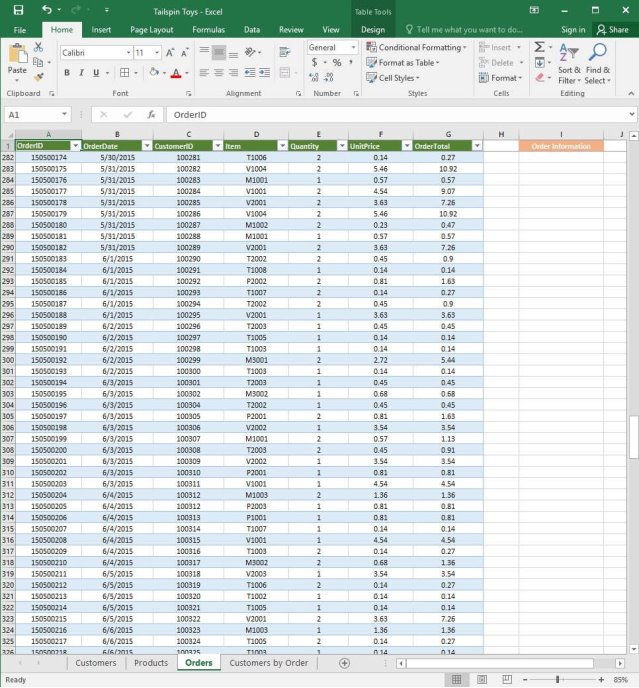
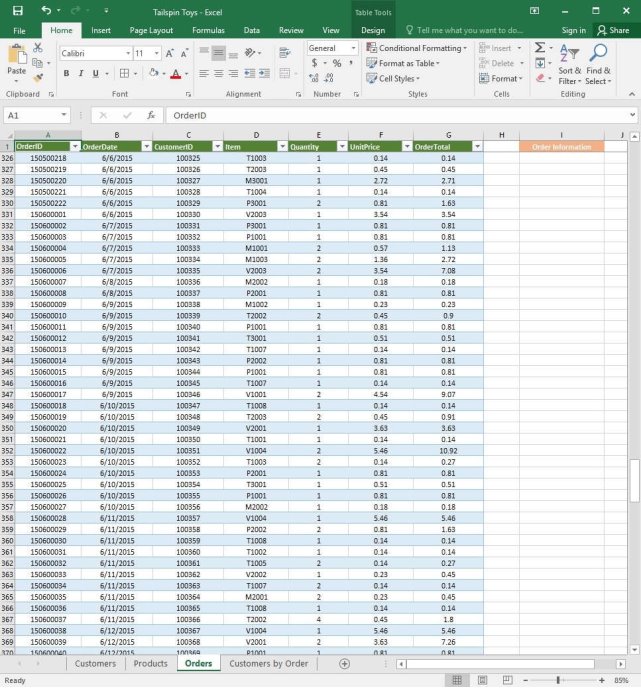
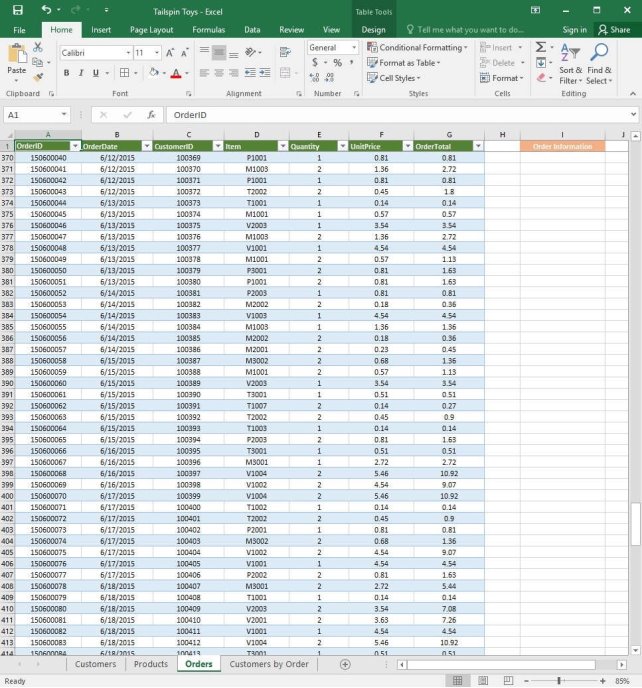
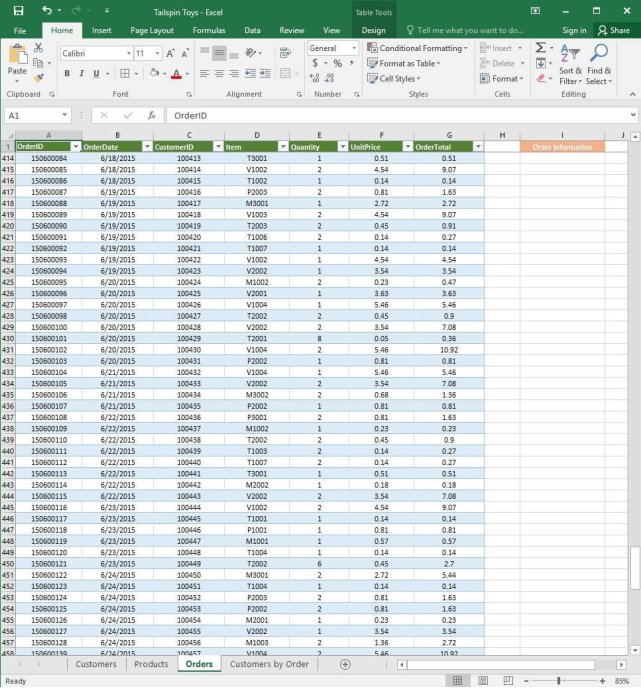
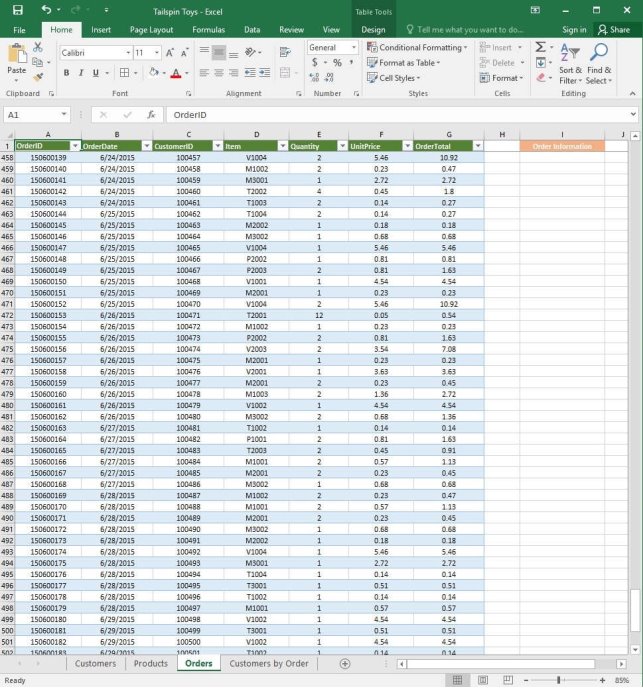
You recently opened an online toy store. You have sold products to 500 individual customers. You are evaluating customer data and order data.
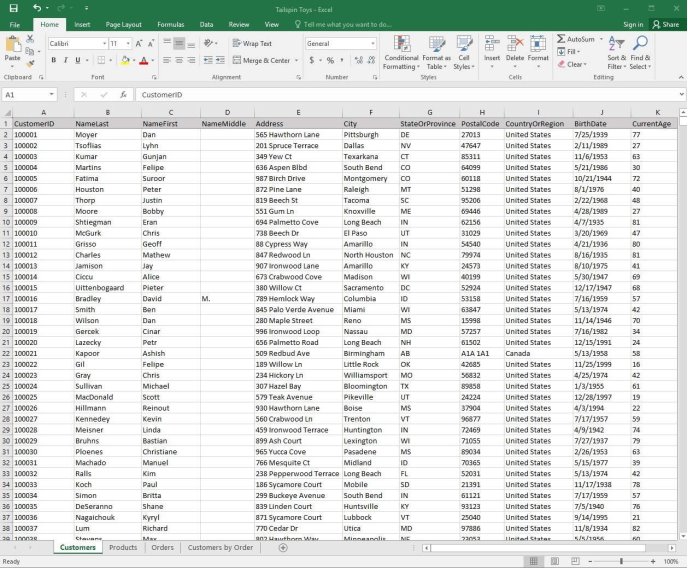
On the “Customers” worksheet, format the table so that every other row is shaded. Use a technique that automatically updates the formatting if you insert a new row.
Answer is in the explanation below.
Ask AI for More Explanation
— your own AI account, opens inside the app
Reference / correct answer:
See explanation below.
1. On the “Customers” worksheet, click the Select All button OR press Ctrl+A.
2. Click the arrow next to Conditional Formatting from the Home tab in the Styles group, then select New Rule.
3. Click Select a Rule Type in the New Formatting Rule dialog box, then select Use a formula to determine which cells to format.
4. In the Format values where this formula is true box, enter =MOD(ROW(),2)=0.
5. Click on Format.
6. Click the Fill tab from the Format Cells dialog box.
7. Select the desired shade background and then click OK, you are able to view how the background would look in the Preview window in the New Formatting Rule dialog box.
8. Once satisfied, apply the formatting to the cells by clicking OK.
You recently opened an online toy store. You have sold products to 500 individual customers. You are evaluating customer data and order data.
On the “Customers” worksheet, sort the table to order the records by the “CountryOrRegion” field, with customers in the United States first and customers in Canada second.
Then sort the customers in each country alphabetically (from A to Z) by the “StateOrProvince” field.
Finally, sort the customers in each state or province in ascending order by the ‘PostalCode” field.
Answer is in the explanation below.
Ask AI for More Explanation
— your own AI account, opens inside the app
Reference / correct answer:
See explanation below.
1. Select a cell in the “CountryOrRegion” field on the “Customers” worksheet.
2. Select Sort from the Sort & Filter group in the Data tab.
3. In the Sort dialog box, under Column in the Sort by box, Select the “CountryOrRegion” field.
4. Under the Sort On option, select the type of sort desired, in this case Values, to sort by text.
5. Under Order, select Custom List, then set it for customers in the United States to appear first, then the customers in Canada.
6. Then to add another column to sort by, click Add Level.
7. In the Sort dialog box, under Column in the Sort by box, Select the “StateOrProvince” field.
8. Under the Sort On option, select Values.
9. Under Order, select A to Z.
10. Add a final column by clicking Add Level.
11. In the Sort dialog box, under Column in the Sort by box, Select the “PostalCode” field.
You recently opened an online toy store. You have sold products to 500 individual customers. You are evaluating customer data and order data.
On the “Customers” worksheet, enter a formula in cell N2 that uses an Excel function to return the average age of the customers based on the values in the “CurrentAge” column.
Answer is in the explanation below.
Ask AI for More Explanation
— your own AI account, opens inside the app
Reference / correct answer:
See explanation below.
1. Select cell N2 on the “Customers” worksheet, which is where you want the Excel function toreturn the result to.
2. In the Address bar, type the average function syntax; =AVERAGE(K1:K101).
You recently opened an online toy store. You have sold products to 500 individual customers. You are evaluating customer data and order data.
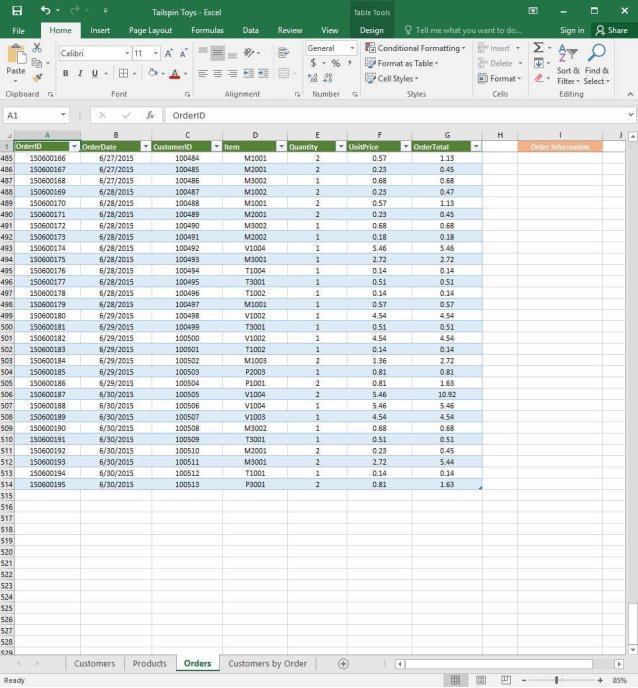
On the “Orders” worksheet, use an automatic formatting method to format cells in the “OrderTotal” column that contain above-average values by applying Green Fill with Dark Green Text. Use a technique that automatically updates the formatting if the column values change.
Answer is in the explanation below.
Ask AI for More Explanation
— your own AI account, opens inside the app
Reference / correct answer:
See explanation below.
1. Select the cells in the “OrderTotal” column which is the data range you are required to highlightthe cells which are above-average.
2. Click Conditional Formatting from the Home tab, then select Top/Bottom Rules, then select the Above Average option.
3. A popped up dialog box will then appear, select the Green Fill with Dark Green Text option asdesired.
You recently opened an online toy store. You have sold products to 500 individual customers. You are evaluating customer data and order data.
On the “Orders” worksheet, enter a formula in cell J2 that uses an Excel function to return the “OrderTotal” value of the individual order that has the highest “OrderTotal” value.
Answer is in the explanation below.
Ask AI for More Explanation
— your own AI account, opens inside the app
Reference / correct answer:
See explanation below.
1. Select the cell J2 where you want the highest “OrderTotal” value to be.
You recently opened an online toy store. You have sold products to 500 individual customers. You are evaluating customer data and order data.
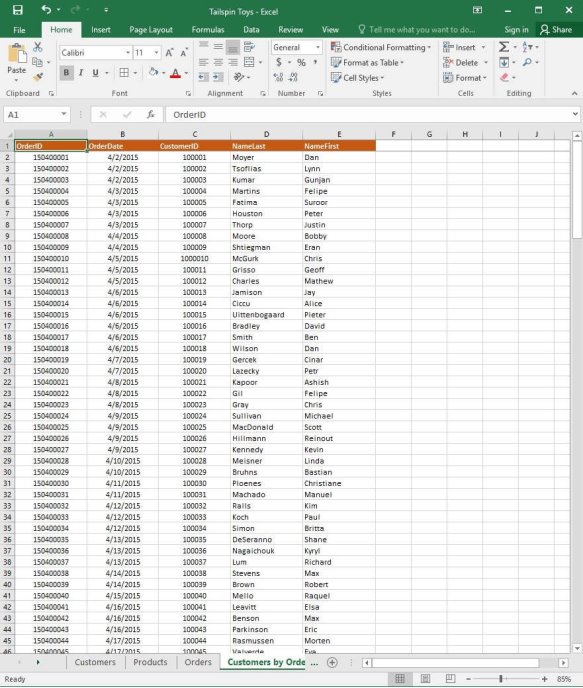
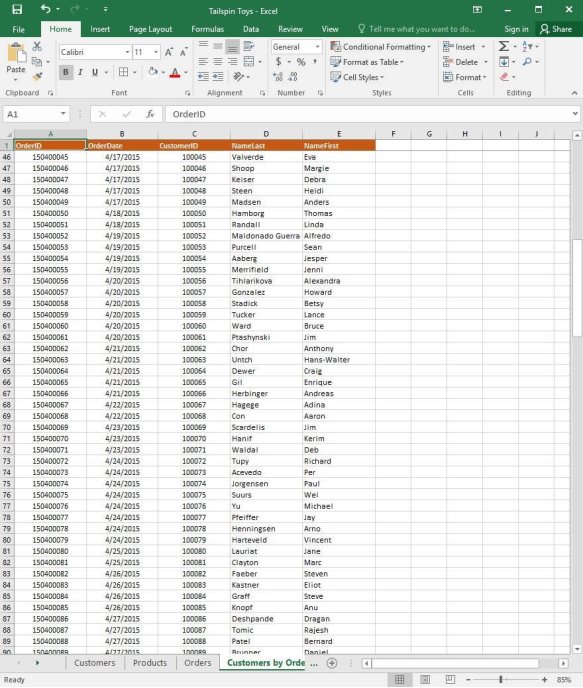
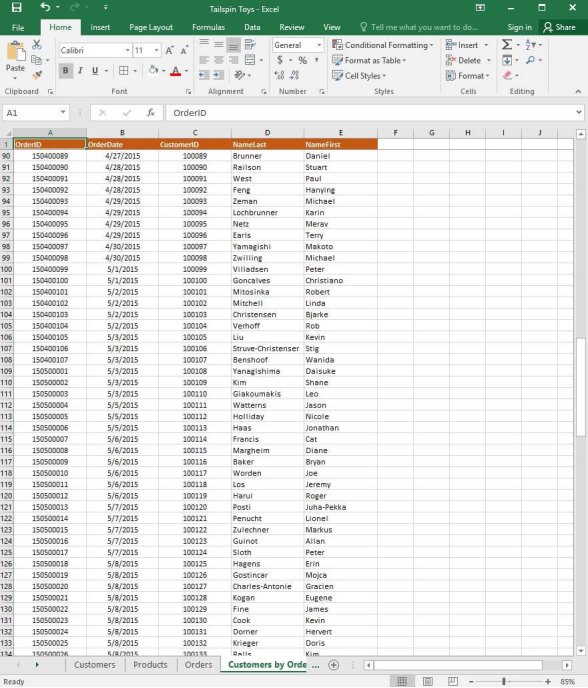
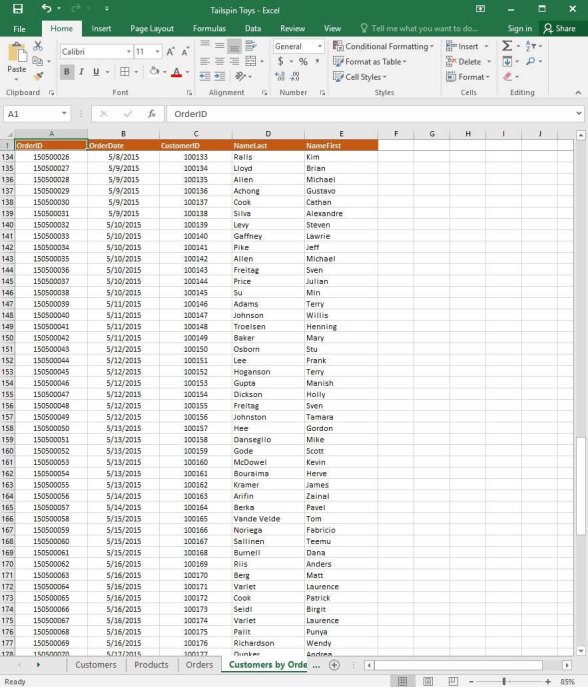
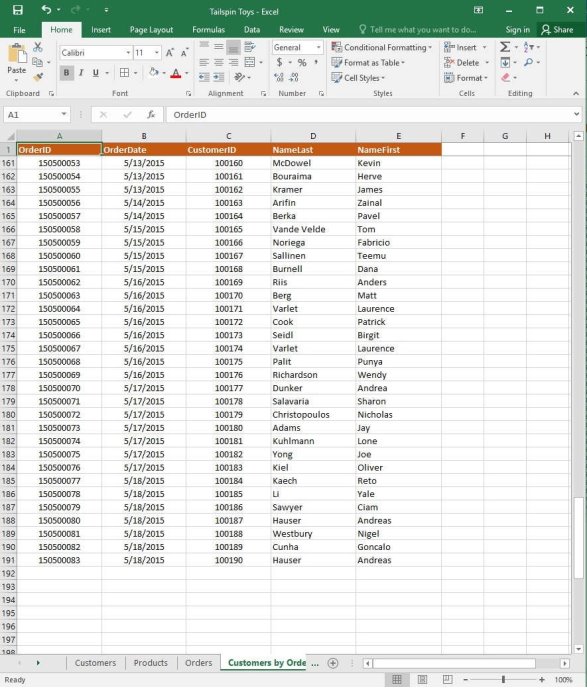
On the “Customers by Order” worksheet, use an Excel data tool to remove all records with duplicate “CustomerID” values from the table. Do not remove any other records.
Answer is in the explanation below.
Ask AI for More Explanation
— your own AI account, opens inside the app
Reference / correct answer:
See explanation below.
1. Select the cells in the “CustomerID” column which you want to have checked for duplicates.
2. Select Remove Duplicates from the Data tab.
3. Select the “CustomerID” column which you want to have checked under the Columns options.
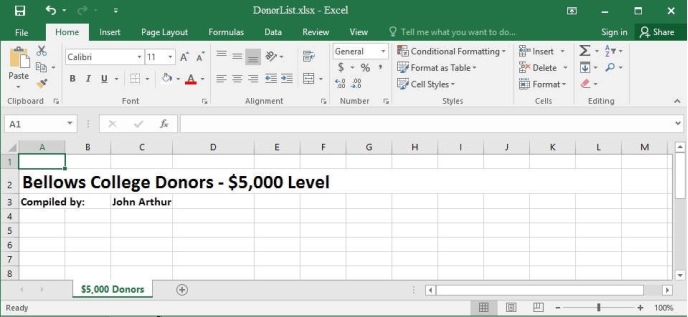
You are an executive assistant for a non-profit organization named Bellows College. You are updating a workbook containing lists of donors.
Beginning at cell A5 of the “$5,000 Donors” worksheet, import the data from the tab-delimited source file, contributors.txt, located in the Documents folder. (Accept all defaults.)
Answer is in the explanation below.
Ask AI for More Explanation
— your own AI account, opens inside the app
Reference / correct answer:
See explanation below.
1. Select cell A5 of the “$5,000 Donors” worksheet where you want the source file to be importedto.
2. Click on File, then select Open.
3. Select Text Files from the Open dialog box.
4. Locate the contributors.txt file in the Documents folder, then double-click it.
This page gives you a working sample of the Study4Pass practice set for Microsoft Certification (MO-210). Ten questions are free below, each with the correct answer marked and a full explanation. The complete set currently holds 35 questions: 35 simulations.
The set is a starter bank for MO-210: its questions are carried over from the 77-727 practice set, the exam MO-210 succeeds, mapped to the same subject areas — so you can start drilling now while the full MO-210 bank is built out.
How to use this MO-210 free practice test
Answer each question before you look anything up — guessing honestly is what makes the result useful. Then open the answer: the correct option is marked and a full explanation walks through the reasoning. If a concept still does not click, use the Ask AI panel on the question — Study4Pass is the 1st AI-Enabled exam practice website, and AI here is for understanding the concept, not a replacement for core preparation.
Work in the mode that fits your stage: Easy Practice and Hard Practice for learning, Topic Training to drill one area, Flagged Practice to revisit questions you marked, and Exam Simulation when you want the real timing pressure.
What the MO-210 practice set covers
The questions follow the published scope of the MO-210 syllabus: Microsoft Excel (Microsoft 365 Apps). Work through them by topic, read every explanation, and use Ask AI on the concepts that do not click.
MO-210 practice test — quick questions
Is this MO-210 practice test really free?
Yes. The 10 questions on this page cost nothing, need no account, and include the answer and explanation for every question.
How many questions are in the complete MO-210 set?
The set currently holds 35 questions. It is a starter bank carried over from the 77-727 set while the full MO-210 bank is built out.
Are these the real MO-210 exam questions?
No — they are practice questions in the style and scope of the real exam, drawn from the 77-727 practice set for the exam MO-210 succeeds. Use them to measure readiness, not as a substitute for the official syllabus.