QSDA2022 Qlik Sense Data Architect Certification Exam-2022

Loading demo links...

Showing 1–3 of 10 questions

Question 1

A data architect is building a model to show trends in visualizations across seven date fields. The seven date fields reside in different tables. The data architect must efficiently build this data model.

Requirements:

• A single date selector

• Show all dates, even those with NO activity

• Minimize the impact on server resources and p

Which two solutions should the data architect use? (Select two.)

Select all that apply, then click Submit answer.

  • Canonical calendar

  • Generic load

  • Data island

  • Multiple calendars

  • Link table

Question 2

A customer has a dataset that contains latitude and longitude data for service points around the country. The data is retrieved using the following statement:

A picture containing text Description automatically generated

It must be clear to the end user that this is geographic data. Drag and drop, map-based visualization of this data is required. Which two steps should the data architect take to support this data? (Select two.)

Select all that apply, then click Submit answer.

  • Define Location as a master item, and set the tag to Sgeodata

  • Add GeoProject{' Point' , Lat&Long) AS Point to the preceding load

  • Add GeoKakePoint (Lat, Long} as Point to Location's preceding load

  • Add the following to the end of the script:
    TAG FIELD LocationName With 'Sgeodata1, 'Srelated'; TAG FIELD Point With 'Sgeodata', 'Srelated1;

  • Add the following to the end of the script:
    TAG FIELD LocationName With 'Sgeoname', •@relates_Pt';
    TAG FIELD Point With 'Sgeopoint*f 'Srelates Location', '$hidden';

Question 3

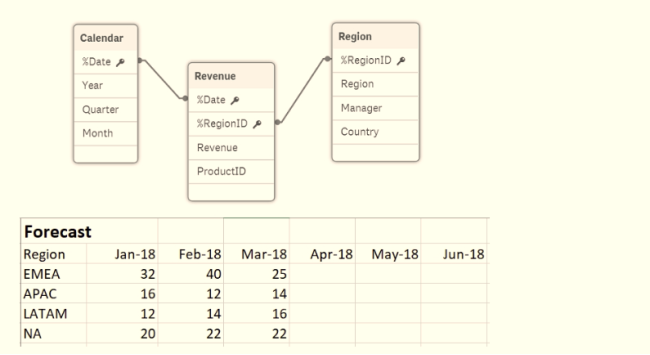
Refer to the exhibit.

Diagram Description automatically generated

A business department is forecasting revenue within an Excel spreadsheet.

A data architect needs to include this forecast into the existing data model, and without losing any data.

Which two sets of steps will meet these requirements? (Select two.)


Select all that apply, then click Submit answer.

  • 1. Load the Excel spreadsheet using the data load editor
    2. Use the Unpivot function
    3. Use the Sum function to group the forecast by date
    4. Connect to the existing data model
     

  • 1. Load the Excel spreadsheet using the data load editor
    2. Use the Crosstable function to unpivot the table
    3. Create a composite key out of the date and region
    4. Connect the new table to the data model
     

  • 1. Load the Excel spreadsheet using the data load editor
    2. Change the sort order by date
    3. Create a composite key out of the forecast and region
    4. Connect to the existing data model
     

  • 1. Load the Excel spreadsheet into the data manager
    2. Use the Unpivot function
    3. Create a composite key from the date and region
    4. Connect the new table to the data model
    1. Load the Excel spreadsheet using the data manager
    2. Rename the ForecastDate field to Date
    3. Disable the Region
    4. Connect to the existing data model