You plan to enable Azure Command-Line Interface (CLI) for Azure Stack Hub users.
You create an alias template file.
You need to configure the virtual machine aliases endpoint. The solution must use the principle of least privilege.
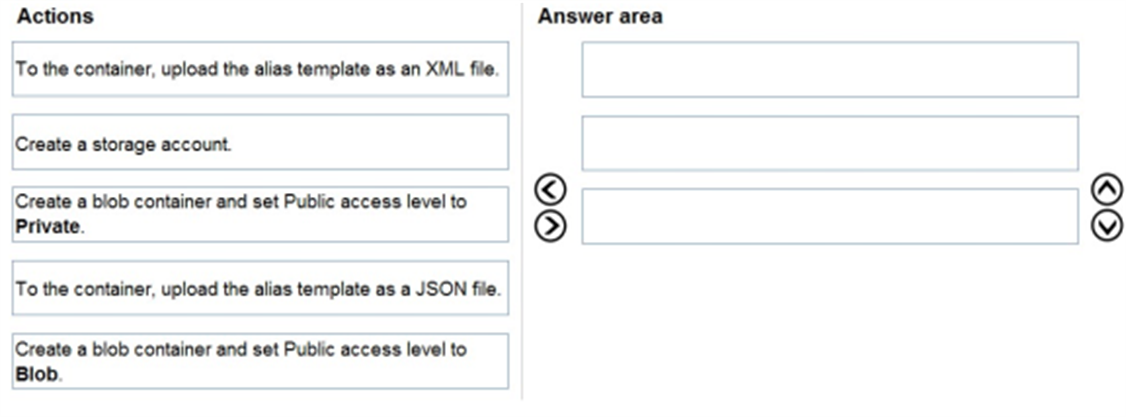
Which three actions should you perform in sequence? To answer, move the appropriate actions from the list of actions to the answer area and arrange them in the correct order.
Answer is in the explanation below.
Reference / correct answer:
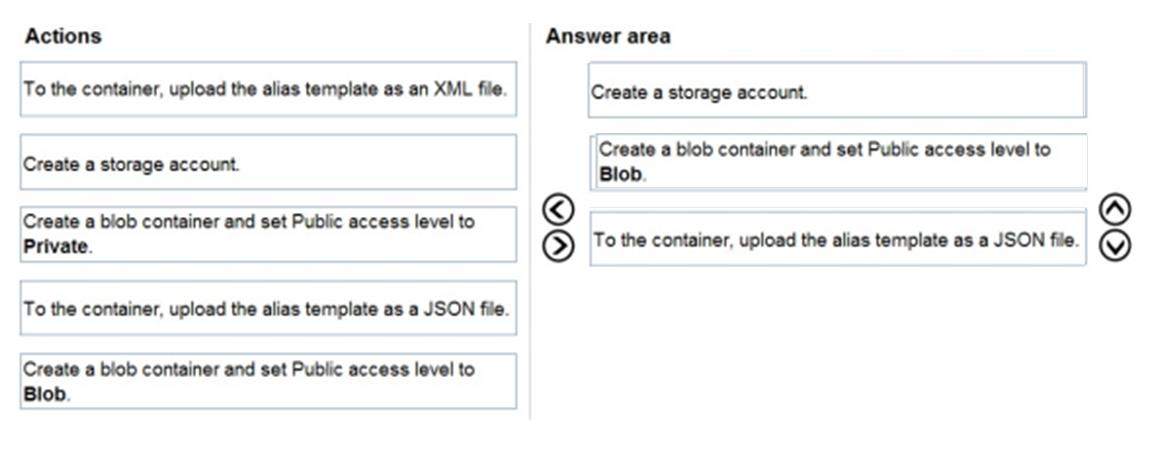
Step 1: Create a storage account
A sample alias file with many common image aliases is available. You can use that as a starting point. Host this file in a space where your CLI clients can reach it. One way is to host the file in a blob storage account and share the URL with your users:
1. Download the sample file from GitHub.
2. Create a storage account in Azure Stack Hub (Step 1). When that's done, create a blob container. Set the access policy to "public." (Step 2)
3. Upload the JSON file to the new container (Step 3). When that's done, you can view the URL of the blob. Select the blob name and then select the URL from the blob properties.
Step 2: Create a blob container and set the Public access to Blob.
Set up the VM aliases endpoint
Azure Stack Hub operators should set up a publicly accessible endpoint that hosts a VM alias file. The VM alias file is a JSON file that provides a common name for an image. You use the name when you deploy a VM as an Azure CLI parameter.
Note: When public access is allowed for a storage account, you can configure a container with the following permissions:
* Public read access for blobs only: Blobs within the container can be read by anonymous request, but container data is not available anonymously. Anonymous clients cannot enumerate the blobs within the container.
* Public read access for container and its blobs: Container and blob data can be read by anonymous request, except for container permission settings and container metadata. Clients can enumerate blobs within the container by anonymous request, but cannot enumerate containers within the storage account.
* No public read access: The container and its blobs can be accessed only with an authorized request. This option is the default for all new containers.
Step 3: To the container, upload the alias template as a JSON file.
You have an Azure Stack Hub integrated system that contains a guest Azure AD tenant named fabrikam.com.
You need to unregister fabrikam.com.
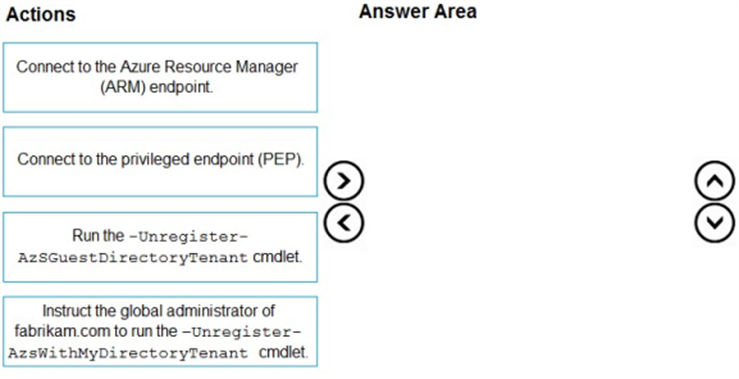
Which three actions should you perform in sequence? To answer, move the appropriate actions from the list of actions to the answer area and arrange them in the correct order.
Answer is in the explanation below.
Reference / correct answer:
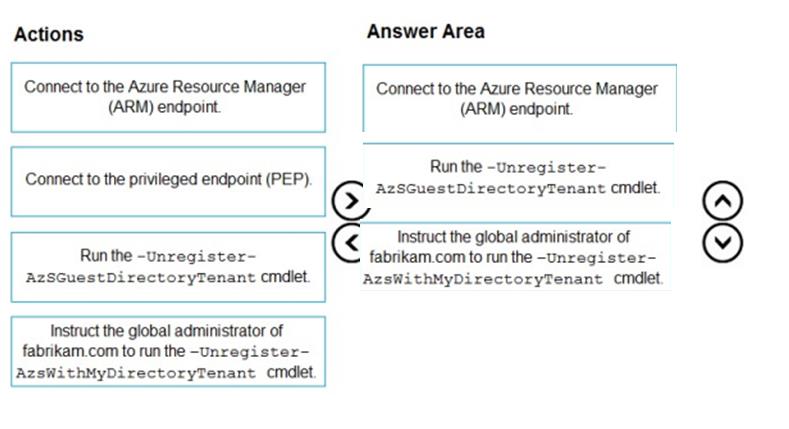
Step 1: Connect to the Azure Resource Manager (ARM) endpoint
Compare to the steps in the note below.
Use https://adminmanagement..
Azure Resource Manager (administrator)
Adminmanagement..
Azure Resource Manager (user)
Management..
Step 2: Run the –Unregister-AzSGuestDirectoryTenant cmdlet.
Unregister a guest directory
If you no longer want to allow sign-ins to Azure Stack Hub services from a guest directory tenant, you can unregister the directory. Again, both the home Azure Stack Hub directory and guest directory need to be configured.
Configure guest directory
Step 3: Instruct the global administrator of fabrikam.com to run the –unregister- AzsWithMyDirectoryTenant cmdlet.
Configure guest directory
Note: Enabling AAD Multi-Tenancy in Azure Stack
Allowing users and service principals from multiple AAD directory tenants to sign in and create resources on Azure Stack. There are two personas involved in implementing this scenario.
1. The Administrator of the Azure Stack installation
2. The Directory Tenant Administrator of the directory that needs to be onboarded to Azure Stack
Step 1: Onboard the Guest Directory Tenant to Azure Stack
This step will let Azure Resource manager know that it can accept users and service principals from the guest directory tenant.
$adminARMEndpoint = "https://adminmanagement.."
$azureStackDirectoryTenant = ".onmicrosoft.com" # this is the primary tenant Azure Stack is registered to
$guestDirectoryTenantToBeOnboarded = ".onmicrosoft.com" # this is the new tenant that needs to be onboarded to Azure Stack
With this step, the work of the Azure Stack administrator is done.
Guest Directory Tenant Administrator
Step 2: Registering Azure Stack applications with the Guest Directory
Execute the following cmdlet as the administrator of the directory that needs to be onboarded, replacing $guestDirectoryTenantName with your directory domain name
$tenantARMEndpoint = "https://management.."
$guestDirectoryTenantName = ".onmicrosoft.com" # this is the new tenant that needs to be onboarded to Azure Stack
You have a connected Azure Stack Hub integrated system.
You perform the following tasks:
• On a server named SERVER1. you create a file share named AzSHLogs.
• You create a PowerShell remoting session to the privileged endpoint (PEP) of the integrated system.
• In a variable named $Session, you store a reference to the session.
• In a variable named $AdHinCredentials. you store a reference to the credentials required to write to AzSHLogs.
You need to collect the Hyper-V event logs for all the cluster hosts and copy the logs to the AzSHLogs share. How should you complete the PowerShell script? To answer, select the appropriate options in the answer area.
Answer is in the explanation below.
Reference / correct answer:
Box 1: $using:AdminCredentials
Box 2: Storage
Send Azure Stack Hub diagnostic logs by using the privileged endpoint (PEP)
To run Get-AzureStackLog on an integrated system, you need to have access to the privileged endpoint (PEP). Here's an example script you can run using the PEP to collect logs.
$ipAddress = "" # You can also use the machine name instead of IP here.