Question 4
Formula.
Insert text using a formula
Cell K2
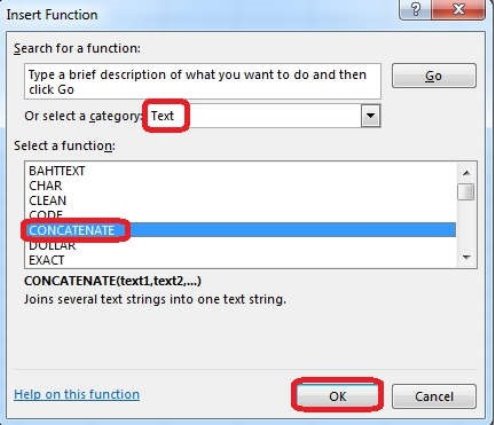
Use Function CONCATENATE
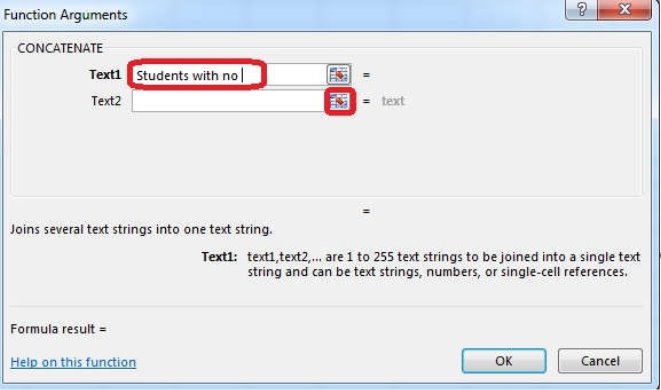
Text1 : "Students with no "
Text 2: header of column F
Absolute Reference
Answer: Use the following steps to complete this task in explanation:
Explanation:
Step 1: Click K2 and Click on the insert function button.
Step 2: Select Category: Text, the CONCATENATE function, and click OK.
Step 3: In the Function Arguments dialog box in the Text1 box type: Students with no , and then click the Text2 reference button, and click on the header of column F in the worksheet, press the enter Key
Step 4: Press the OK button in the Function Arguments dialog box.
Answer is in the explanation below.