You have an Azure subscription that contains a resource group named RG1.
You have a group named Group1 that is assigned the Contributor role for RG1.
You need to enhance security for the virtual machines in RG1 to meet the following requirements:
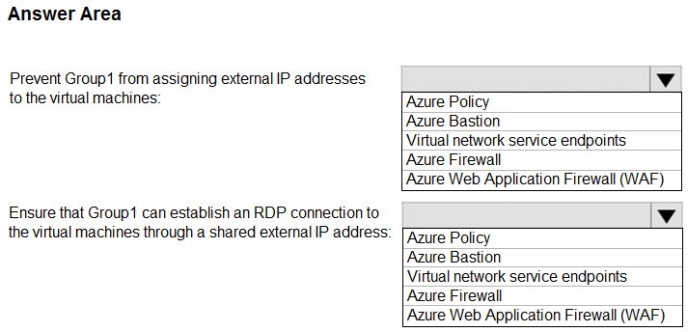
Prevent Group1 from assigning external IP addresses to the virtual machines.
Ensure that Group1 can establish an RDP connection to the virtual machines through a shared external IP address.
What should you use to meet each requirement? To answer, select the appropriate options in the answer area.
NOTE: Each correct selection is worth one point.
Hot Area:
Answer is in the explanation below.
Reference / correct answer:
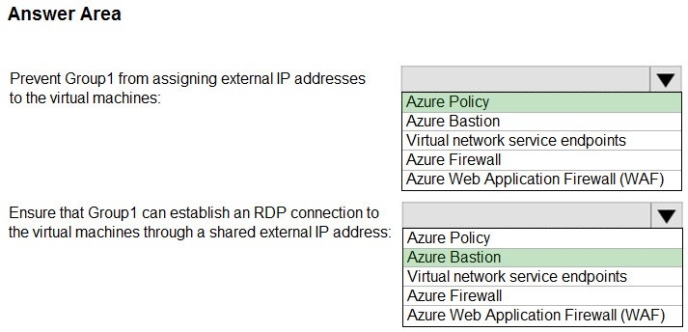
Box 1: Azure Policy
There is a built-in policy in the Azure Policy service that allows you to block public IPs on all NICs of a VM.
Note: Azure Policy is a powerful tool in your Azure toolbox. It allows you to enforce specific governance principals you want to see implemented in your environment. Some key examples of what Azure Policy allows you to do is:
Automatically tag resources
Block VMs from having a public IP
Enforce specific regions Enforce VM size
Box 2: Azure Bastion
Azure Bastion is a fully managed PaaS service that provides secure and seamless RDP and SSH access to your virtual machines directly through the Azure Portal.
Azure Bastion is provisioned directly in your Virtual Network (VNet) and supports all VMs in your Virtual Network (VNet) using SSL without any exposure through public IP addresses.
Incorrect Answers:
Virtual Network (VNet) service endpoint provides secure and direct connectivity to Azure services over an optimized route over the Azure backbone network. Endpoints allow you to secure your critical Azure service resources to only your virtual networks. Service Endpoints enables private IP addresses in the VNet to reach the endpoint of an Azure service without needing a public IP address on the VNet.
Click to expand each objective. To connect to the Azure portal, type https://portal.azure.com in the browser address bar.
When you are finished performing all the tasks, click the ‘Next’ button.
Note that you cannot return to the lab once you click the ‘Next’ button. Scoring occur in the background while you complete the rest of the exam.
Overview
The following section of the exam is a lab. In this section, you will perform a set of tasks in a live environment. While most functionality will be available to you as it would be in a live environment, some functionality (e.g., copy and paste, ability to navigate to external websites) will not be possible by design.
Scoring is based on the outcome of performing the tasks stated in the lab. In other words, it doesn’t matter how you accomplish the task, if you successfully perform it, you will earn credit for that task.
Labs are not timed separately, and this exam may have more than one lab that you must complete. You can use as much time as you would like to complete each lab. But, you should manage your time appropriately to ensure that you are able to complete the lab(s) and all other sections of the exam in the time provided.
Please note that once you submit your work by clicking the Next button within a lab, you will NOT be able to return to the lab.
To start the lab
You may start the lab by clicking the Next button.
You plan to back up all the Azure virtual machines in your Azure subscription at 02:00 Coordinated Universal Time (UTC) daily.
You need to prepare the Azure environment to ensure that any new virtual machines can be configured quickly for backup. The solution must ensure that all the daily backups performed at 02:00 UTC are stored for only 90 days.
What should you do from your Recovery Services vault on the Azure portal?
Answer is in the explanation below.
Reference / correct answer:
See explanation below.
Task A: Create a Recovery Services vault (if a vault already exists skip this task, go to Task B below)
A1. From Azure Portal, On the Hub menu, click All services and in the list of resources, type Recovery Services and click Recovery Services vaults.
If there are recovery services vaults in the subscription, the vaults are listed.
A2. On the Recovery Services vaults menu, click Add.
A3. The Recovery Services vault blade opens, prompting you to provide a Name, Subscription, Resource group, and Location
Task B.
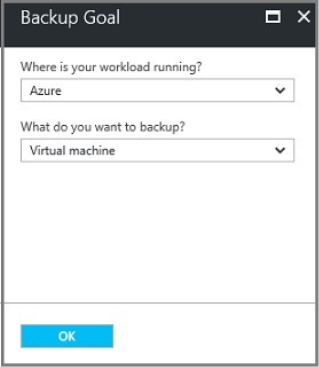
B1. On the Recovery Services vault blade (for the vault you just created), in the Getting Started section, click Backup, then on the Getting Started with Backup blade, select Backup goal.
The Backup Goal blade opens. If the Recovery Services vault has been previously configured, then the Backup Goal blades opens when you click Backup on the Recovery Services vault blade.
B2. From the Where is your workload running? drop-down menu, select Azure.
B3. From the What do you want to backup? menu, select Virtual Machine, and click OK.
B4. Finish the Wizard.
Task
C. create a backup schedule
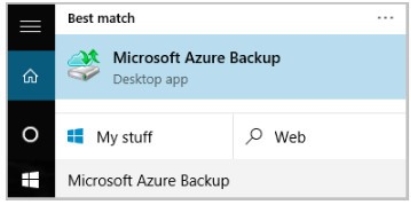
C1. Open the Microsoft Azure Backup agent. You can find it by searching your machine for Microsoft Azure Backup.
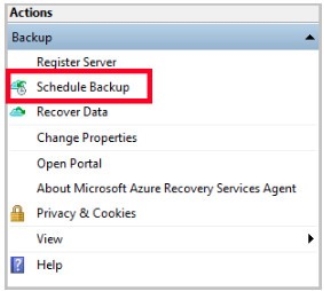
C2. In the Backup agent's Actions pane, click Schedule Backup to launch the Schedule Backup Wizard.
C3. On the Getting started page of the Schedule Backup Wizard, click Next.
C4. On the Select Items to Backup page, click Add Items.
The Select Items dialog opens.
C5. Select Blob Storage you want to protect, and then click OK.
C6.In the Select Items to Backup page, click Next.
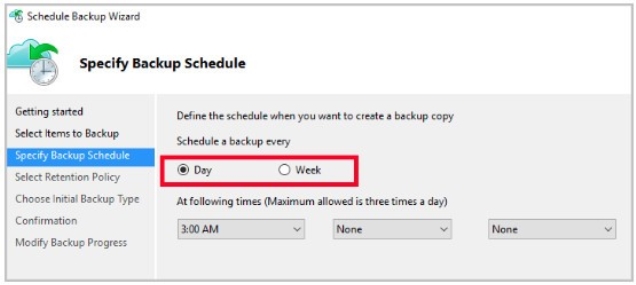
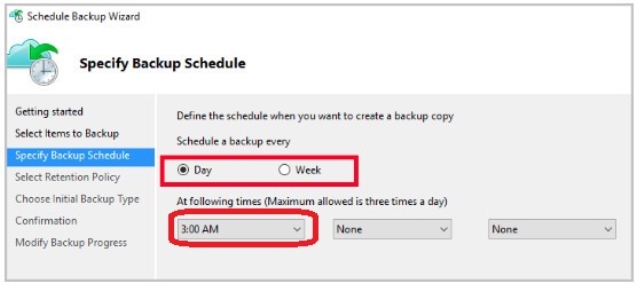
On the Specify Backup Schedule page, specify
Schedule a backup every: day
At the following times: 2.00 AM
C7. On the Select Retention Policy page, set it to 90 days, and click Next.
SIMULATION Click to expand each objective. To connect to the Azure portal, type https://portal.azure.com in the browser address bar.
When you are finished performing all the tasks, click the ‘Next’ button.
Note that you cannot return to the lab once you click the ‘Next’ button. Scoring occur in the background while you complete the rest of the exam.
Overview
The following section of the exam is a lab. In this section, you will perform a set of tasks in a live environment. While most functionality will be available to you as it would be in a live environment, some functionality (e.g., copy and paste, ability to navigate to external websites) will not be possible by design.
Scoring is based on the outcome of performing the tasks stated in the lab. In other words, it doesn’t matter how you accomplish the task, if you successfully perform it, you will earn credit for that task.
Labs are not timed separately, and this exam may have more than one lab that you must complete. You can use as much time as you would like to complete each lab. But, you should manage your time appropriately to ensure that you are able to complete the lab(s) and all other sections of the exam in the time provided.
Please note that once you submit your work by clicking the Next button within a lab, you will NOT be able to return to the lab.
To start the lab
You may start the lab by clicking the Next button.
You plan to create 100 Azure virtual machines on each of the following three virtual networks:
- VNET1005a
- VNET1005b - VNET1005c
All the network traffic between the three virtual networks will be routed through VNET1005a.
You need to create the virtual networks, and then to ensure that all the Azure virtual machines can connect to other virtual machines by using their private IP address. The solutions must NOT require any virtual gateways and must minimize the number of peerings.
What should you do from the Azure portal before you configure IP routing?
Answer is in the explanation below.
Reference / correct answer:
See solution below.
Step 1: Click Create a resource in the portal.
Step 2: Enter Virtual network in the Search the Marketplace box at the top of the New pane that appears. Click Virtual network when it appears in the search results.
Step 3: Select Classic in the Select a deployment model box in the Virtual Network pane that appears, then click Create.
Step 4: Enter the following values on the Create virtual network (classic) pane and then click Create:
Name: VNET1005a
Address space: 10.0.0.0/16
Subnet name: subnet0
Resource group: Create new
Subnet address range: 10.0.0.0/24
Subscription and location: Select your subscription and location.
Step 5: Repeat steps 3-5 for VNET1005b (10.1.0.0/16, 10.1.0.0/24), and for VNET1005c 10.2.0.0/16, 10.2.0.0/24).
 Prevent Group1 from assigning external IP addresses to the virtual machines.