You have an Azure subscription that contains an Azure file share.
You have an on-premises server named Server1 that runs Windows Server 2016.
You plan to set up Azure File Sync between Server1 and the Azure file share.
You need to prepare the subscription for the planned Azure File Sync.
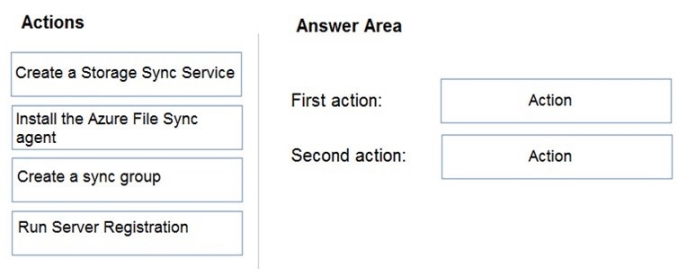
Which two actions should you perform in the Azure subscription? To answer, drag the appropriate actions to the correct targets. Each action may be used once, more than once, or not at all. You may need to drag the split bar between panes or scroll to view content.
NOTE: Each correct selection is worth one point.
Select and Place:
Answer is in the explanation below.
Reference / correct answer:
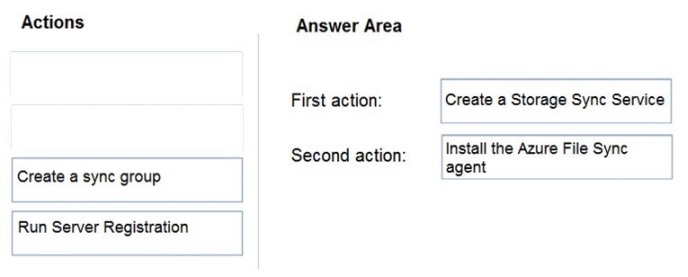
First action: Create a Storage Sync Service
The deployment of Azure File Sync starts with placing a Storage Sync Service resource into a resource group of your selected subscription.
Second action: Install the Azure File Sync agent
The Azure File Sync agent is a downloadable package that enables Windows Server to be synced with an Azure file share.
You have an Azure subscription that is used by four departments in your company. The subscription contains 10 resource groups. Each department uses resources in several resource groups.
You need to send a report to the finance department. The report must detail the costs for each department.
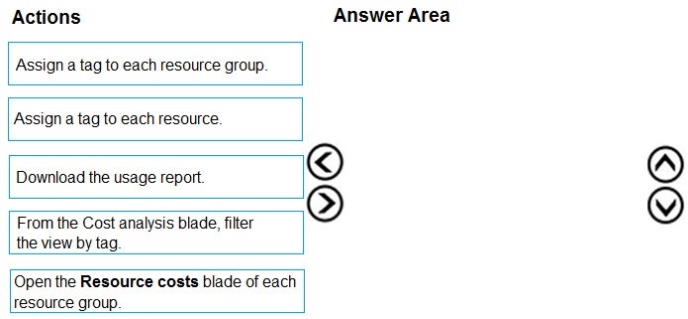
Which three actions should you perform in sequence? To answer, move the appropriate actions from the list of actions to the answer area and arrange them in the correct order.
Select and Place:
Answer is in the explanation below.
Reference / correct answer:
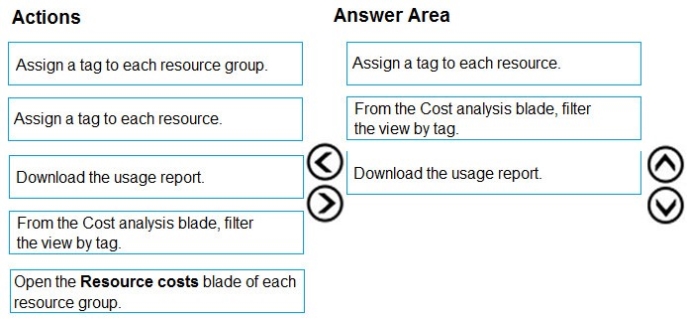
Box 1: Assign a tag to each resource.
You apply tags to your Azure resources giving metadata to logically organize them into a taxonomy. After you apply tags, you can retrieve all the resources in your subscription with that tag name and value. Each resource or resource group can have a maximum of 15 tag name/value pairs. Tags applied to the resource group are not inherited by the resources in that resource group.
Box 2: From the Cost analysis blade, filter the view by tag
After you get your services running, regularly check how much they're costing you. You can see the current spend and burn rate in Azure portal.
1. Visit the Subscriptions blade in Azure portal and select a subscription.
You should see the cost breakdown and burn rate in the popup blade.
2. Click Cost analysis in the list to the left to see the cost breakdown by resource. Wait 24 hours after you add a service for the data to populate.
3. You can filter by different properties like tags, resource group, and timespan. Click Apply to confirm the filters and Download if you want to export the view to a Comma-Separated Values (.csv) file.