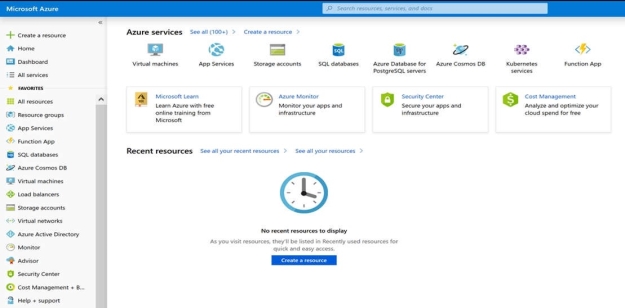
Please wait while the virtual machine loads. Once loaded, you may proceed to the lab section. This may take a few minutes, and the wait time will not be deducted from your overall test time.
When the Next button is available, click it to access the lab section. In this section, you will perform a set of tasks in a live environment. While most functionality will be available to you as it would be in a live environment, some functionality (e.g, copy and paste, ability to navigate to external websites) will not be possible by design.
Scoring is based on the outcome of performing the tasks stated in the lab. In other words, it doesn’t matter how you accomplish the task, if you successfully perform it, you will earn credit for that task.
Labs are not timed separately, and this exam may have more than one lab that you must complete. You can use as much time as you would like to complete each lab. But, you should manage your time appropriately to ensure that you are able to complete the lab(s) and all other sections of the exam in the time provided.
Please note that once you submit your work by clicking the Next button within a lab, you will NOT be able to return to the lab.
You may now click next to proceed to the lab.
You need to deploy an Azure virtual machine named VM1004a based on an Ubuntu Server image, and then configure VM1004a to meet the following requirements:
The virtual machine must contain data disks that can store at least 15 TB of data.
The data disks must be able to provide at least 2.000 IOPS. Storage costs must be minimized.
What should you do from the Azure portal?
Answer is in the explanation below.
Reference / correct answer:
See solution below.
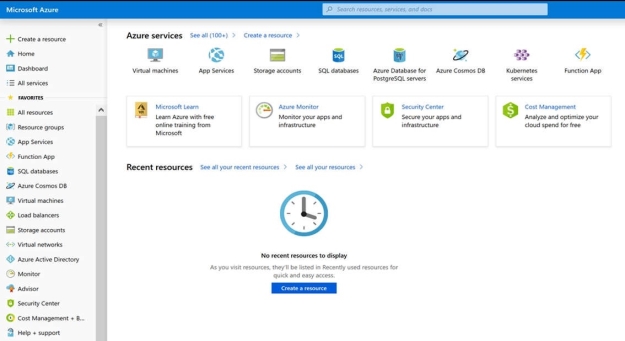
Step 1: Open the Azure portal.
Step 2: On the left menu, select All resources. You can sort the resources by Type to easily find your images.
Step 3: Select the image you want to use from the list. The image Overview page opens.
Step 4: Select Create VM from the menu.
Step 5: Enter the virtual machine information.
Select VM1004a as the name for the first Virtual machine.
The user name and password entered here will be used to log in to the virtual machine. When complete, select OK. You can create the new VM in an existing resource group, or choose Create new to create a new resource group to store the VM.
Step 6: Select a size for the VM. To see more sizes, select View all or change the Supported disk type filter. To meet the requirements select Standard SSD E70.
Standard SSD E70: Up to 16 TB, IOPS up to 4000, $1,228.80/month
Standard SSD Managed Disks, a low-cost SSD offering, are optimized for test and entry-level production workloads requiring consistent latency.
Step 7: Under Settings, make changes as necessary and select OK.
Step 8: On the summary page, you should see your image name listed as a Private image. Select Ok to start the virtual machine deployment.
Please wait while the virtual machine loads. Once loaded, you may proceed to the lab section. This may take a few minutes, and the wait time will not be deducted from your overall test time.
When the Next button is available, click it to access the lab section. In this section, you will perform a set of tasks in a live environment. While most functionality will be available to you as it would be in a live environment, some functionality (e.g, copy and paste, ability to navigate to external websites) will not be possible by design.
Scoring is based on the outcome of performing the tasks stated in the lab. In other words, it doesn’t matter how you accomplish the task, if you successfully perform it, you will earn credit for that task.
Labs are not timed separately, and this exam may have more than one lab that you must complete. You can use as much time as you would like to complete each lab. But, you should manage your time appropriately to ensure that you are able to complete the lab(s) and all other sections of the exam in the time provided.
Please note that once you submit your work by clicking the Next button within a lab, you will NOT be able to return to the lab.
You may now click next to proceed to the lab.
You plan to create several virtual machines in different availability zones, and then to configure the virtual machines for load balanced connections from the Internet.
You need to create an IP address resource named ip1006 to support the planned load balancing solution. The solution must minimize costs.
What should you do from the Azure portal?
Answer is in the explanation below.
Reference / correct answer:
See solution below.
We should create a public IP address.
Step 1: At the top, left corner of the portal, select + Create a resource.
Step 2: Enter public ip address in the Search the Marketplace box. When Public IP address appears in the search results, select it.
Step 3: Under Public IP address, select Create.
Step 4: Enter, or select values for the following settings, under Create public IP address, then select Create: Name: ip1006
 The virtual machine must contain data disks that can store at least 15 TB of data.