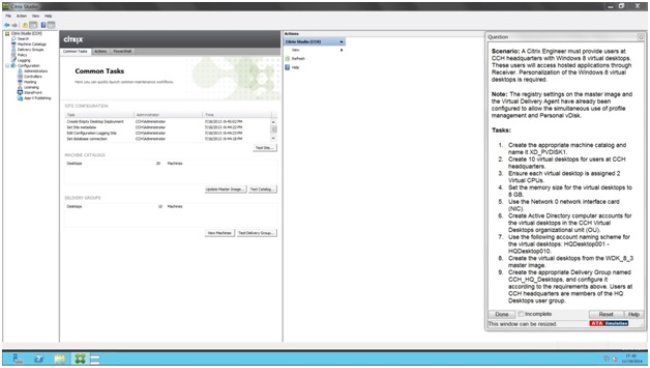
Scenario: A Citrix Engineer must provide users at CCH headquarters with Windows 8 virtual desktops. These users will access hosted applications through Receiver. Personalization of the Windows 8 virtual desktops is required.
Note: The registry settings on the master image and the Virtual Delivery Agent have already been configured to allow the simultaneous use of profile management and Personal vDisk.
Tasks:
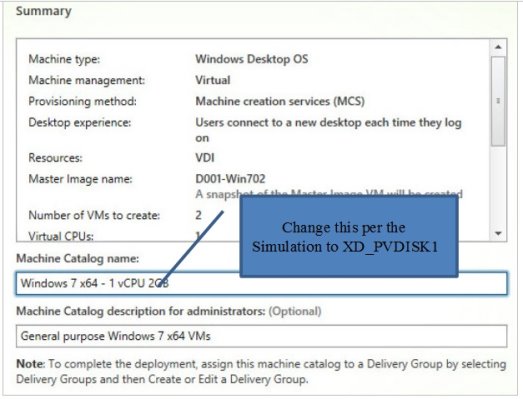
1. Create the appropriate machine catalog and name it XD_PVDISK1.
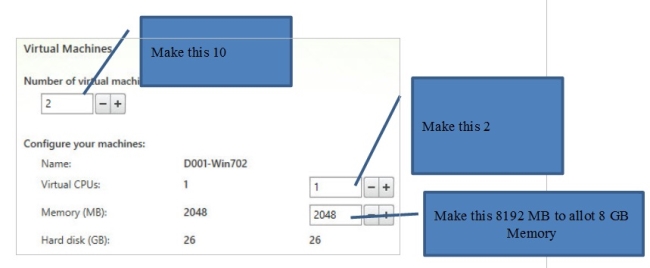
2. Create 10 virtual desktops for users at CCH headquarters.
3. Ensure each virtual desktop is assigned 2 Virtual CPUs.
4. Set the memory size for the virtual desktops to 8 GB.
5. Use the Network 0 network interface card (NIC).
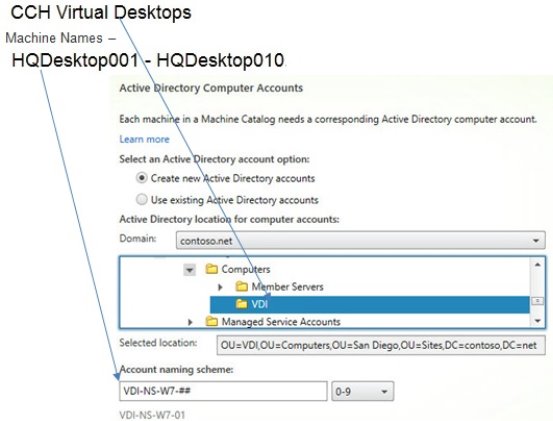
6. Create Active Directory computer accounts for the virtual desktops in the CCH Virtual Desktops organizational unit(OU).
7. Use the following account naming scheme for the virtual desktops: HQDesktop001 – HQDesktop010.
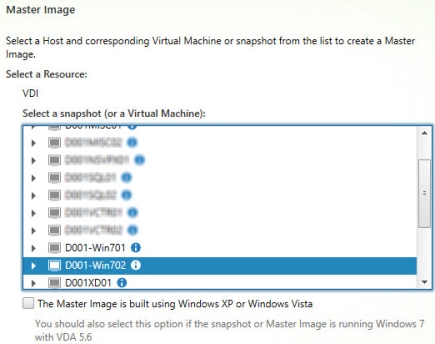
8. Create the virtual desktops from the WDK_8_3 master image.
9. Create the appropriate Delivery Group named CCH_HQ_Desktops, and configure it according to the requirements above. Users at CCH headquarters are members of the HQ Desktops user group.
Answer: Find the solution with all steps below.
Explanation:
XenDesktop 7 Machine Catalog
1. In Desktop Studio we want to create a VM catalog,
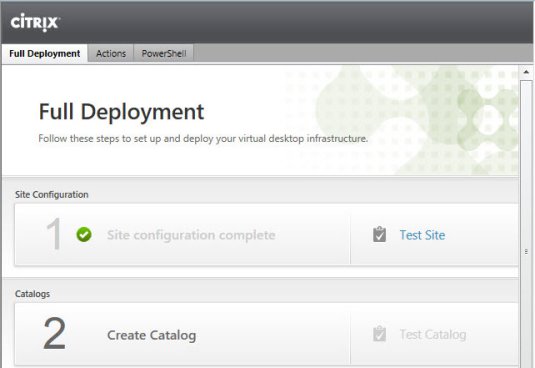
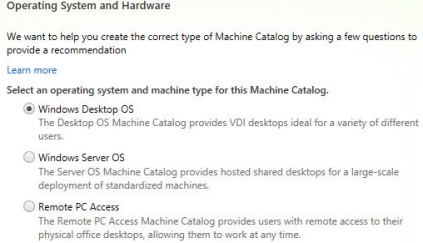
2. Choose the OS type
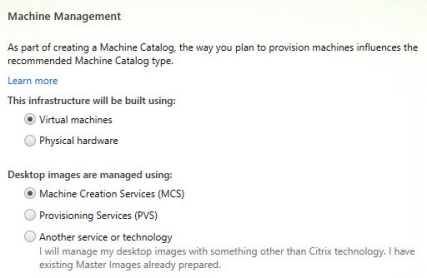
3. We will be using VMs and Citrix Machine Creation Services, so the defaults are fine.
4. Use the default
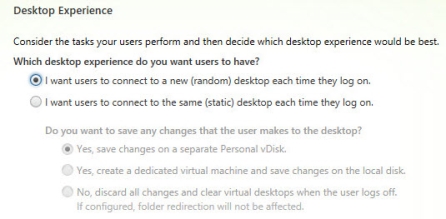
5. Choose the master image

6. A great feature of XenDesktop is the ability to customize the catalog hardware at provisioning time, so you can offer different tiers of VMs from the exact same master image. No need to build up templates with the same OS and software stack, just to customize the vCPUs and memory specs.
7. OU –
8. On the summary screen you need to give the catalog a name and a description.
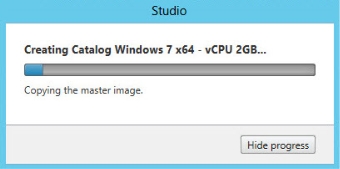
9. After you kick off the provisioning process you get a nice status. MCS first makes a copy of your master VM, then does its magic to create copies
.
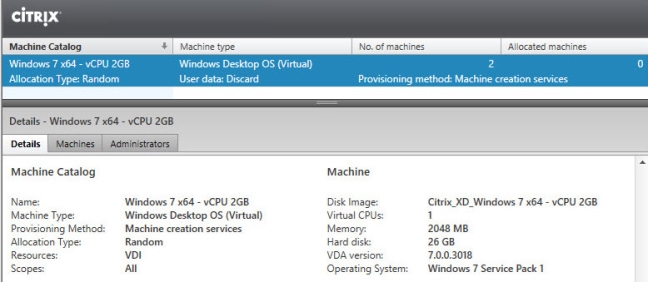
10. When the provisioning is completed you now have one machine catalog entry
11. If you double click on the machine catalog it will bring up a search window with the individual VMs listed. You can now power them on and wait for them to show a “registered” status. If you click on an individual VM it will pull up even more details. If a user had an active session to the VM then you get a plethora more data.
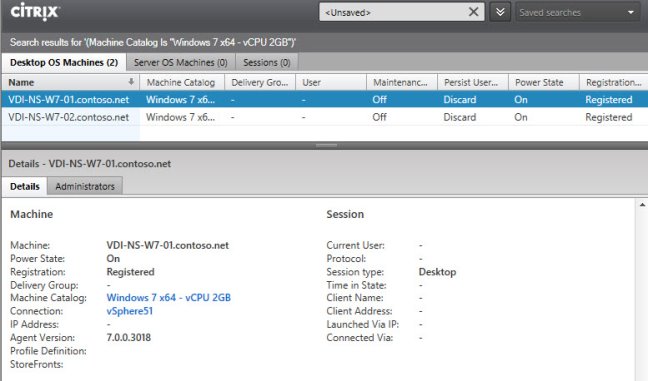
As you can see, creating a machine catalog from a master template is quick and easy. Within Desktop Studio you can view a tremendous amount of detail about the catalog and individual VMs.
Answer is in the explanation below.
