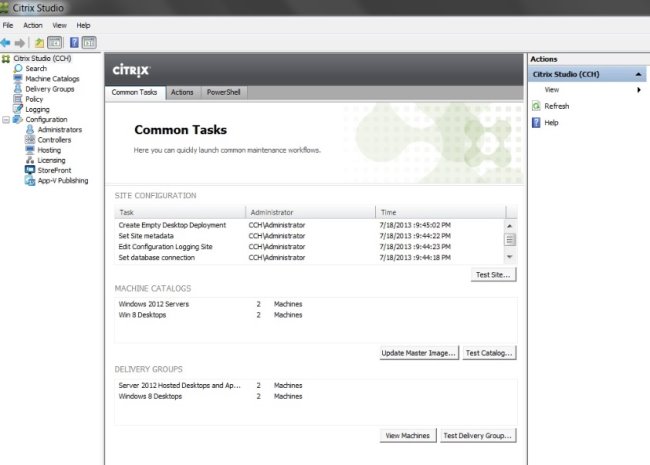
Scenario: A Citrix Administrator has prepared two server OS machines to host applications. The administrator used Machine Creation Services to provision the server OS machines. The server OS machines are part of the Windows 2012 Servers machine catalog. The Server 2012 Hosted Desktops and Applications delivery group is assigned to the Windows 2012 Servers machine catalog.
The administrator was instructed to roll out Firefox as a hosted application and has installed Firefox on the master server OS machine named Win2012-Master. Now, the administrator needs to update the server OS machines so that Firefox is available as a hosted application to only the Finance user group through StoreFront or Citrix Receiver upon the next reboot of the server OS machines. The Finance user group is a member of the Server 2012 Hosted Desktops and Applications delivery group.
Tasks:
Update the Windows 2012 Servers machine catalog to meet the requirements outlined in the scenario.
Answer is in the explanation below.
Reference / correct answer:
See Explanation Below For Answer
Update Machine Catalog
1) In Citrix Studio, highlight the “Citrix Studio” node at the top-left of the tree, under “Common Tasks” under the “Machine Catalog” section, highlight the Windows Server 2012 Machine Catalog and click on the Update master image button. This will launch the “Update machine” wizard. (Note-the virtual machine should be powered off before updating to remove any locks.)
2) In the “Update Machine” wizard click on Next.
3) From the “Master Image” dialog window, select the Win2012-Master from the list of snapshots and virtual machines then click on Next.
4) From the “Rollout Strategy” dialog window, verify that the “On the next shut down (not right now)” option is selected and then click on Next.
5) From the “Summary” dialog window click on Finish.
Update Delivery Group
1) In Citrix Studio, highlight “Delivery Groups” node at the top-left of the tree, select the Delivery Groups tab, highlight the Server 2012 Hosted Desktops and Applications delivery group, under the right-side “Actions” pane click on Add Applications.
2) From the “Getting Started with Applications” dialog window click on Next.
3) From the “Applications” dialog window click on select Firefox from the list of “Selected Applications” or click on Add applications Manually and type in the path of the application then click on Next.
4) From the “Summary” dialog window click on Finish.
5) In Citrix Studio, highlight “Delivery Groups” node at the top-left of the tree, select the Delivery Groups tab, highlight the Server 2012 Hosted Desktops and Applications delivery group, under the right-side “Actions” pane click on View Applications. This will display the published applications available under the “Applications” tab.
6) Highlight Firefox under the “Applications” tab and then click on Properties under the right-side “Actions” pane.
7) From the “Application Settings” dialog window select Limit Visibility.
8) From the “Limit Visibility” dialog window select “Limit visibility for this application to the users listed below”, click on Add Users, and the Finance group then click on Ok.
Question 2(Managing a Citrix XenDesktop 7.6 Solution)
Scenario: A company, OrgA, has an existing XenDesktop site and recently acquired another company, OrgB. OrgB also has an existing XenDesktop site and multiple thin clients deployed using the online plug-in. OrgA wants all employees to use the current OrgA StoreFront store.
Which two changes in StoreFront must a Citrix Administrator make to meet the requirements of the scenario? (Choose two.)
Select all that apply, then click Submit answer.
○
Enable Remote Access.
○
Export the Multi-store Provisioning file.
○
Add the FQDN or IP address of the Delivery Controller in OrgB to the existing store.
○
Create a new store using the FQDN or IP address of the Delivery Controllers in OrgA and OrgB.
○
Go to the specific store on the StoreFront servers and enable the 'Configure XenApp for Services Support' feature.
Reference / correct answer:
Add the FQDN or IP address of the Delivery Controller in OrgB to the existing store.
Go to the specific store on the StoreFront servers and enable the 'Configure XenApp for Services Support' feature.
Question 3(Troubleshooting a Citrix XenDesktop 7.6 Solution)
Scenario: A Citrix Administrator discovers that a user is unable to connect to a Desktop OS machine. While reviewing Citrix Director, the administrator identifies that the Desktop OS machine is marked as 'Unregistered'.
Which two tools could the administrator use to troubleshoot this issue? (Choose two.)
Select all that apply, then click Submit answer.
○
rsop.msc
○
telnet.exe
○
netsh.exe
○
nbtstat.exe
○
netstat.exe
Reference / correct answer:
telnet.exe
netstat.exe
Limited Time Offer – Save Now!
Don’t miss out — get full access at the best price.