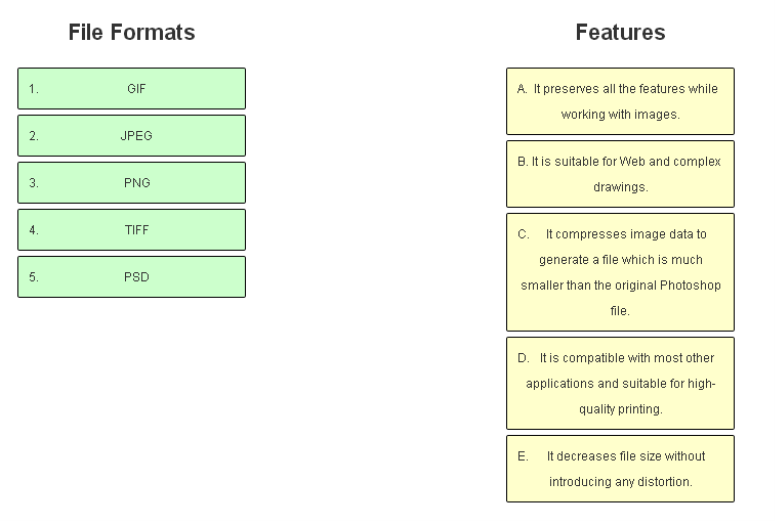
Match the file formats according to their features.
Answer is in the explanation below.
Reference / correct answer:
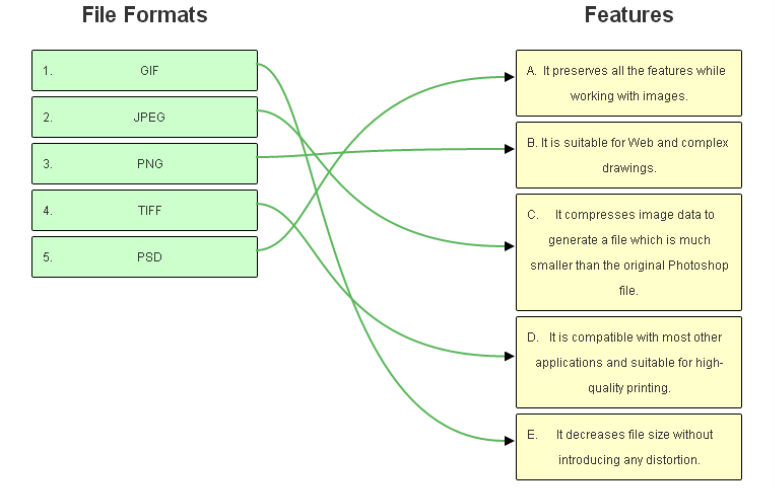
The TIFF file format is compatible with most other applications and suitable for high-quality printing. The PNG file format is suitable for Web and complex drawing. The GIF file format decreases the file size without introducing any distortion. The JPEG file format compresses image data to generate a file which is much smaller than the original Photoshop file. The PSD file format preserves the entire feature while working with images in Photoshop CS6.
The TIFF file format is compatible with most other applications and suitable for high-quality printing. The PNG file format is suitable for Web and complex drawing. The GIF file format decreases the file size without introducing any distortion. The JPEG file format compresses image data to generate a file which is much smaller than the original Photoshop file. The PSD file format preserves the entire feature while working with images in Photoshop CS6.
Question 2(Volume A)
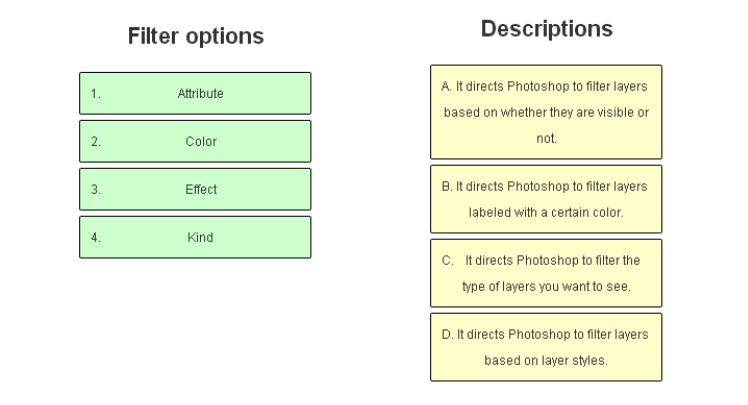
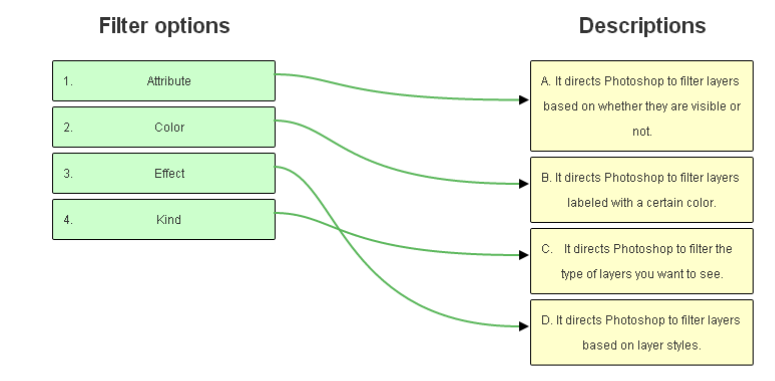
Match the Filter options with their descriptions.
Answer is in the explanation below.
Reference / correct answer:
The following are the Filter options and their descriptions:
Options
Descriptions
Kind
Directs Photoshop to filter the type of layers you want to see. Use the buttons to the right of the menu to have Photoshop display only the Image, Adjustment, Type, or Shape layers, or Smart Objects.
Name
Photoshop displays only the layers whose names include what you entered. It is not case-sensitive.
Effect
Directs Photoshop to filter layers based on layer styles.
Mode
Directs Photoshop to filter layers based on their blend modes, pick this option and then choose the blend mode you are after from the pop-up menu that appears on the right.
Attribute
Directs Photoshop to filter layers based on whether or not they are visible, empty, locked or linked to other layers, clipped to other layers, include a pixel- or vector-based layer mask, include effects, or use advanced blending options.
Color
Directs Photoshop to filter layers labeled with a certain color.
The following are the Filter options and their descriptions:
Options
Descriptions
Kind
Directs Photoshop to filter the type of layers you want to see. Use the buttons to the right of the menu to have Photoshop display only the Image, Adjustment, Type, or Shape layers, or Smart Objects.
Name
Photoshop displays only the layers whose names include what you entered. It is not case-sensitive.
Effect
Directs Photoshop to filter layers based on layer styles.
Mode
Directs Photoshop to filter layers based on their blend modes, pick this option and then choose the blend mode you are after from the pop-up menu that appears on the right.
Attribute
Directs Photoshop to filter layers based on whether or not they are visible, empty, locked or linked to other layers, clipped to other layers, include a pixel- or vector-based layer mask, include effects, or use advanced blending options.
Color
Directs Photoshop to filter layers labeled with a certain color.
Question 3(Volume A)
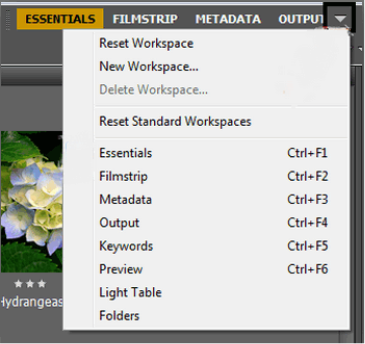
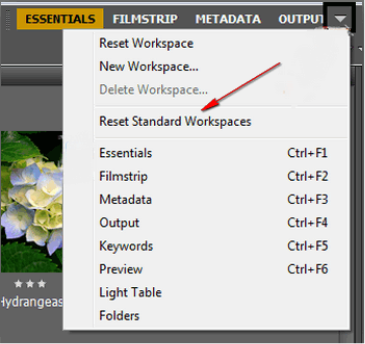
You work as a graphic designer for WEBDESIGN Inc. You are using Adobe Bridge and you want to restore the default settings for the Adobe pre-defined workspace. Mark the option that you will use to accomplish this task.
Answer is in the explanation below.
Reference / correct answer:
You should use the Reset Standard Workspaces option. This option restores the default settings for the Adobe pre-defined workspaces (Essentials, Output, etc.).
You should use the Reset Standard Workspaces option. This option restores the default settings for the Adobe pre-defined workspaces (Essentials, Output, etc.).
Limited Time Offer – Save Now!
Don’t miss out — get full access at the best price.